
Your iPhone won’t restore. iTunes shows “Error 4013” or “Error 9.” The progress bar stops halfway through the iOS update. These are the most frustrating iPhone errors because they prevent you from updating or restoring your device completely.
After fixing over 500 iPhone restore errors at BreakFixNow Singapore, we’ve identified exactly why these errors occur and how to fix them—both DIY solutions and when you need professional help.
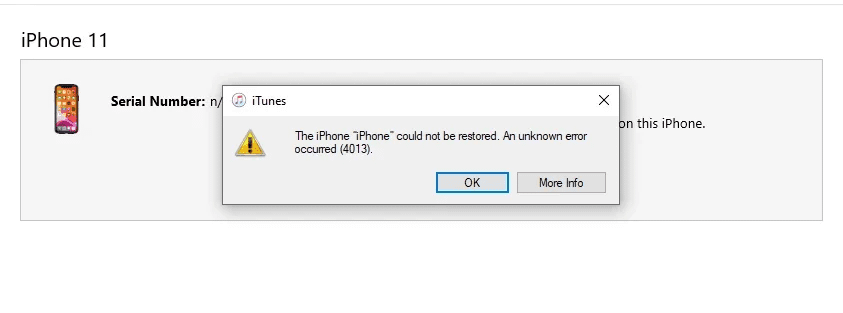
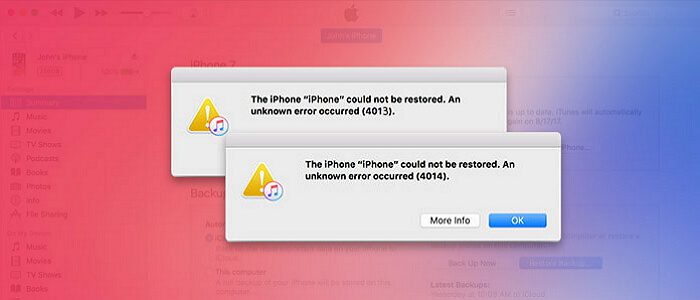
What Are Errors 9, 4013, and 4014?
These three error codes appear during iOS updates or iPhone restore processes via iTunes/Finder. Here’s what each means:
Error 9:
- Appears during firmware updates or restore
- Usually indicates hardware communication issues
- Can be caused by security software interference
- Often related to USB connection problems
Error 4013:
- Occurs when iPhone disconnects during restore
- Computer can’t communicate with the device
- May indicate hardware problems with the logic board
- Common after water damage or drops
Error 4014:
- Similar to Error 4013 but different trigger point
- Happens during the verification phase of restore
- Usually a connection or cable issue
- Sometimes indicates deeper hardware failure
According to Apple Support, these errors mean: “The iPhone [device name] could not be restored. An unknown error occurred.”
Why These Errors Happen
Based on repair data from BreakFixNow and Apple’s official documentation, here are the main causes:
1. USB Connection Problems (60% of cases)
- Faulty or non-certified Lightning cable
- Damaged USB port on computer
- Using USB hub instead of direct connection
- Loose cable connections
2. Software Conflicts (25% of cases)
- Outdated iTunes/Finder version
- Third-party security software blocking iTunes
- Firewall settings preventing Apple server access
- Corrupted iOS firmware download
3. Hardware Issues (15% of cases)
- Water damage affecting internal components
- Damaged NAND flash memory
- Logic board faults after physical damage
- Battery connection problems
Step-by-Step Fixes for Error 9, 4013, 4014
Fix 1: Check Your USB Cable and Port (Solves 50% of cases)
This is the most common cause—and the easiest fix.
What to do:
- Use the original Apple Lightning cable (or certified MFi cable)
- Inspect cable for damage, fraying, or bent pins
- Plug directly into computer USB port (not keyboard/hub)
- Try different USB ports on your computer
- Clean iPhone charging port with compressed air
Singapore Tip: Humid weather corrodes Lightning cables faster. Replace cables every 12-18 months.
Fix 2: Force Restart Your iPhone
A force restart clears temporary software glitches without erasing data.
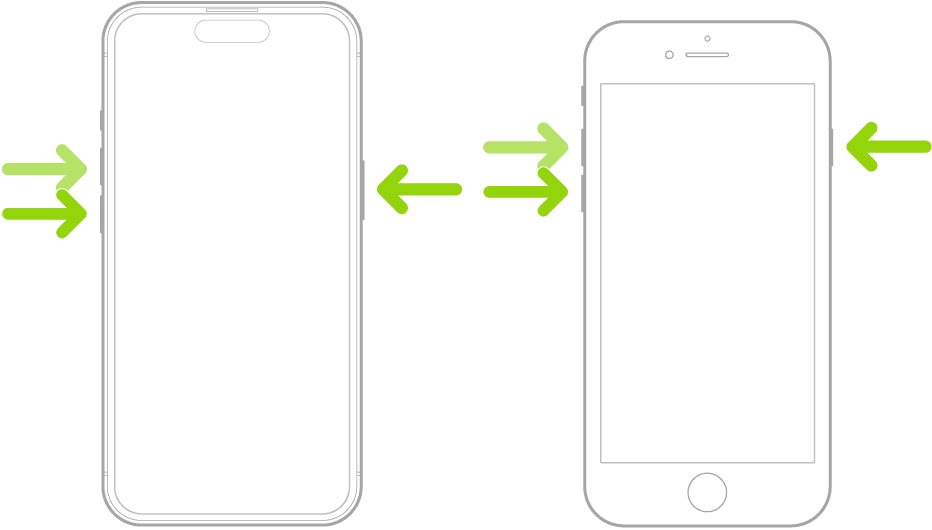
For iPhone 8 and newer (including iPhone 14, 15, 16):
- Press and quickly release Volume Up button
- Press and quickly release Volume Down button
- Press and hold Side button until Apple logo appears
For iPhone 7/7 Plus:
- Press and hold Volume Down + Side button simultaneously
- Hold for 10 seconds until Apple logo appears
For iPhone 6s and earlier:
- Press and hold Home + Power button together
- Hold for 10 seconds until Apple logo appears
Wait for iPhone to restart, then try restoring again.
Fix 3: Update iTunes/Finder and Your Computer
Outdated software causes compatibility issues.
On Mac (macOS Catalina or later):
- Click Apple menu → System Settings
- Select General → Software Update
- Install any available updates
- Restart your Mac
On Windows PC:
- Open iTunes
- Click Help → Check for Updates
- Install latest iTunes version
- Restart computer
After updating, reconnect iPhone and try restore again.
Fix 4: Disable Security Software Temporarily
Third-party antivirus and firewalls block iTunes from contacting Apple servers.
What to disable:
- Norton, McAfee, Kaspersky antivirus
- Windows Firewall (temporarily)
- VPN connections
- Corporate network restrictions
How to do it:
- Right-click antivirus icon in system tray
- Select “Disable protection” or “Pause”
- Set for 15-30 minutes
- Try iPhone restore immediately
- Re-enable security after restore completes
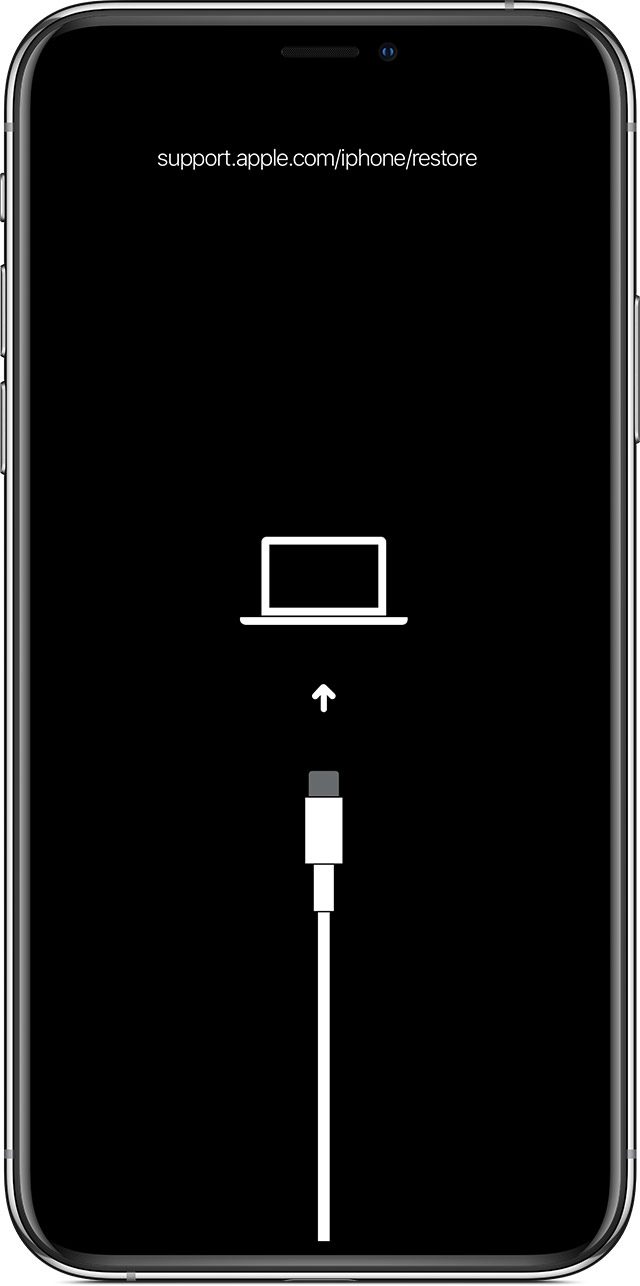
Fix 5: Use Recovery Mode (Advanced)
If normal restore fails, Recovery Mode forces a fresh iOS installation.
Steps:
- Connect iPhone to computer with cable
- Open iTunes/Finder
- Force restart iPhone but don’t release buttons when Apple logo appears
- Keep holding until “Connect to iTunes” screen shows
- iTunes will detect iPhone in Recovery Mode
- Click “Update” (not Restore) to preserve data
- Wait 15-30 minutes for process to complete
Warning: If Update fails, you’ll need to click Restore, which erases all data.
Fix 6: Try a Different Computer
Your computer might have software conflicts or corrupted iTunes installation.
Best options:
- Borrow a friend’s Mac or PC
- Visit Apple Store (book appointment first)
- Come to BreakFixNow with your iPhone
If restore works on different computer, your original computer needs iTunes reinstall or system repairs.
Professional iPhone Error Repair in Singapore
BreakFixNow specializes in fixing hardware-related iPhone errors that prevent restore/update.
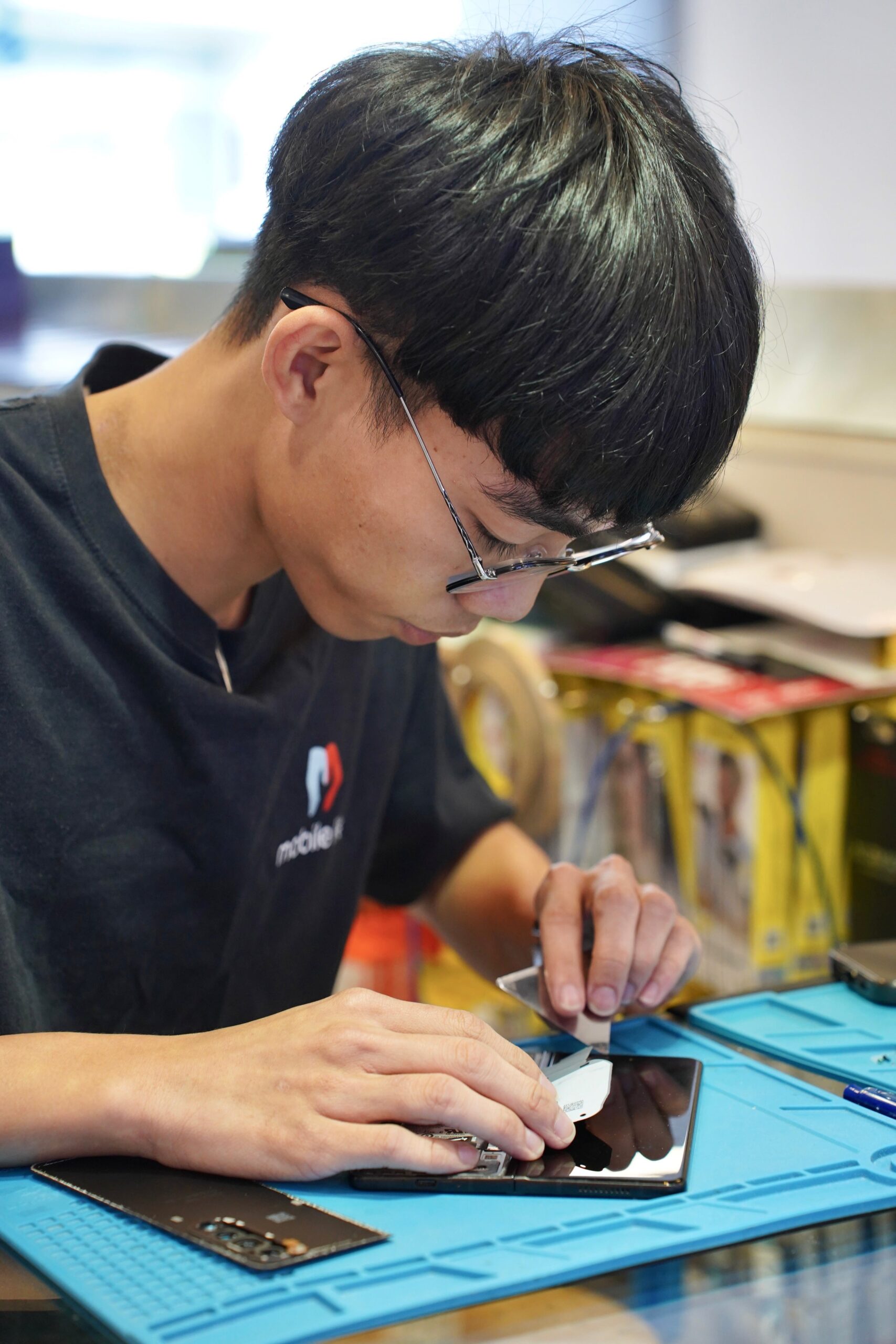
Our diagnostic process:
- Free 15-minute diagnostic test
- Identify exact component causing error
- Quote provided before any repair
- Professional microsoldering if needed
- Same-day repair for most issues
Common repairs:
- Logic board component replacement
- NAND chip reballing/replacement
- Charging port connector repair
- Water damage corrosion cleaning
Pricing:
- Diagnostic: Free
- Component-level repair: S$80-180
- NAND replacement: S$150-250
- Logic board repair: S$120-300
Warranty: 3 months on all hardware repairs
Frequently Asked Questions
What causes iPhone Error 4013?
Error 4013 is caused by: (1) Faulty USB cable/port (60% of cases), (2) Outdated iTunes/Finder software (25%), or (3) Hardware damage to logic board/NAND chip (15%). It occurs when the computer can’t communicate with iPhone during restore/update.
Can I fix Error 9 myself?
Yes, in most cases. Try these DIY fixes: (1) Force restart iPhone, (2) Use original Apple cable and different USB port, (3) Update iTunes/macOS, (4) Disable antivirus temporarily, (5) Try Recovery Mode. If none work, it’s likely hardware damage requiring professional repair.
How long does iPhone error repair take?
At BreakFixNow: Software-related fixes (cable, iTunes update) can be done immediately. Hardware repairs (logic board, NAND chip) take 2-4 hours with same-day service. Free 15-minute diagnostic identifies if it’s software or hardware issue.
Will fixing Error 4014 delete my data?
Depends on the fix. Force restart, cable change, iTunes update won’t delete data. Recovery Mode “Update” preserves data. Recovery Mode “Restore” erases everything. Hardware repairs don’t affect data. Always backup before attempting any fixes.
How much does logic board repair cost in Singapore?
BreakFixNow pricing: Component-level repair S$80-180, NAND replacement S$150-250, Full logic board repair S$120-300. Includes free diagnostic, 3-month warranty, same-day service. Apple charges S$400-600+ for logic board replacement.
Get Expert Help Today
Can’t fix Error 9, 4013, or 4014 yourself? BreakFixNow offers same-day diagnostic and repair.
WhatsApp: +65 9750 4333
Service: Free diagnostic, professional repair, 3-month warranty
Location: Singapore (same-day service available)
✓ Free Diagnostic • ✓ Same-Day Service • ✓ 3-Month Warranty