
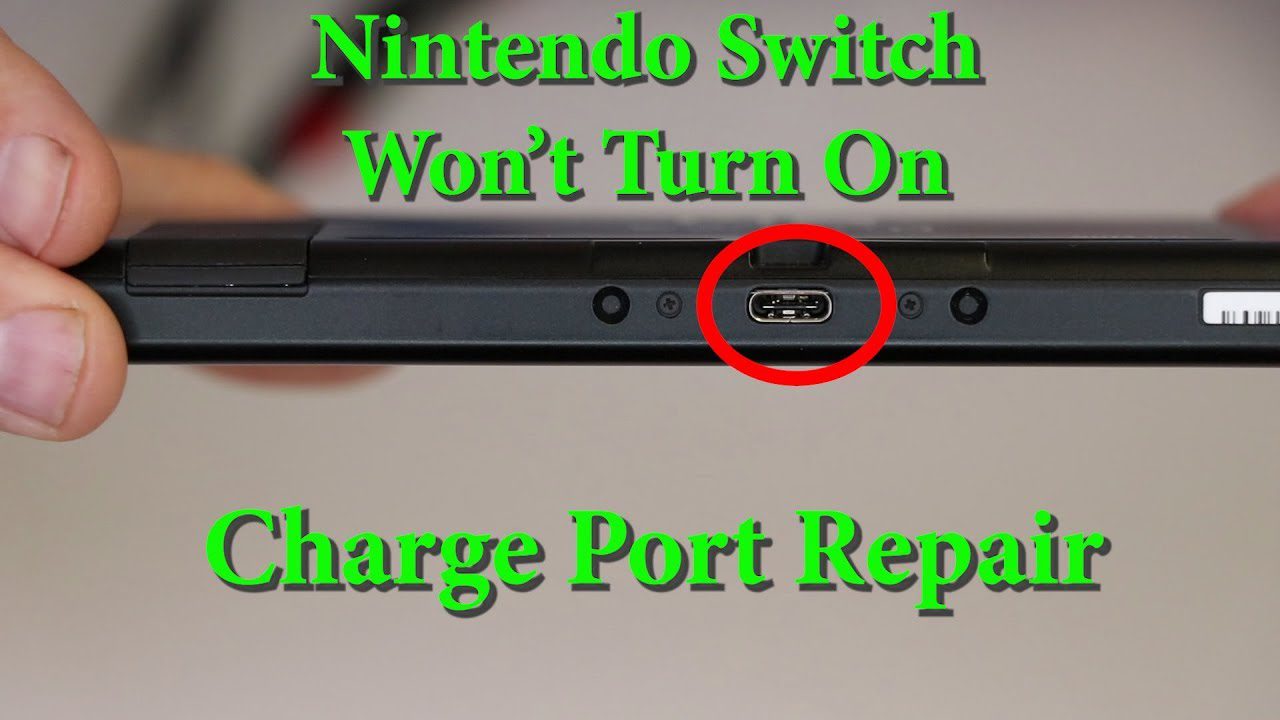
Is your Nintendo Switch not charging? The orange charging light isn’t showing, or the battery percentage won’t increase? Don’t panic—most charging issues are fixable! Whether it’s a faulty charging port, dead battery, or cable problem, here are 7 fixes to try at home, and what to do if none of them work.
Quick answer: why isn’t my Switch charging?
Most often it is the cable or adapter, lint in the USB-C port, or a battery so flat it needs a few hours on the charger before it shows anything. Test with the original Nintendo adapter plugged straight into the console, clean the port, and leave it charging for 3–4 hours before holding POWER for 12 seconds. If it still shows no charging icon, the charging port, the charging chip or the battery has failed and needs repair.
Diagnose Your Switch Charging Problem
- No charging light: Orange light doesn’t appear when plugged in
- Charges slowly: Takes 8+ hours to fully charge (normal: 3 hours)
- Charges intermittently: Must wiggle cable to charge — sign of charging port wear
- Won’t turn on: Dead battery, won’t boot even when plugged in
- Charges only in dock: Handheld charging doesn’t work
Fix 1: Force Restart Your Switch
- Hold the POWER button for 12-15 seconds
- Release when screen turns black
- Wait 10 seconds
- Press POWER button once to turn on
- Plug in charger—check for orange light
Success rate: 30-40% for temporary glitches.
Fix 2: Check Your Charging Cable & Adapter
Faulty cables are the #1 cause of charging issues. Use official Nintendo adapter or certified USB-C PD chargers only — cheap third-party chargers can damage the charging port or power management chip on the mainboard.
⚠️ Test with the original Nintendo adapter plugged straight into the Switch, not through the dock. A fully drained Switch may not wake on a phone charger.
Fix 3: Clean the Charging Port
Dust and lint in the USB-C charging port prevent proper connection. Clean with a toothpick and compressed air — avoid metal tools that can damage the pins.
Singapore Tip: High humidity causes pocket lint to compact in ports. Clean the charging port every 2-3 months for prevention.
Fix 4: Check Your Docking Station
If Switch charges in handheld mode but not in the dock, the dock itself may be faulty. Third-party docks that don’t meet USB-C Power Delivery specs are the most common cause of Switch charging port damage.
Dock Charging Order (Important!): Plug AC adapter into dock first → HDMI → TV → then insert Switch. Wrong sequence can cause charging detection failure.
Fix 5: Perform Battery Reset
If battery is completely drained (0%), Switch may appear dead even when charging. Plug into official AC adapter for 3-4 hours without trying to turn it on, then hold POWER for 12 seconds.
Fix 6: Update System Software
Go to System Settings → System → System Update. Success rate: 10-15% for software-related charging bugs (rare).
Fix 7: Check Operating Temperature
The Switch can stop charging to protect the battery when it gets too hot. Nintendo recommends using it in a room between 5°C and 35°C. Power off, let it cool for 30 minutes in an air-conditioned room, then try charging again.
When to Get Professional Repair
If none of the above work, you likely have hardware failure. Common causes:
- Charging port replacement — loose or damaged USB-C port from wear or physical damage. S$50-70, 45-60 mins.
- Battery replacement — drains in 1-2 hours, swollen. S$50-60. See: Nintendo Switch Battery Replacement.
- Charging IC repair — no charging at all, even with new cable and port. Board-level chip replacement. S$80-120.
- Motherboard damage — from liquid damage or drops. S$120-200. 50-60% success depending on severity.
All prices are confirmed after a free diagnosis. See our Nintendo Switch repair page for outlets and opening hours.
Frequently Asked Questions
Why isn’t my Nintendo Switch charging?
The most common causes are a faulty cable or adapter, lint in the charging port, or a deeply drained battery. Less often, a third-party dock has damaged the port or the charging chip on the mainboard. Try the original Nintendo adapter plugged straight into the console, clean the port with a toothpick, and leave it charging for 3–4 hours before giving up.
Why does my Switch charge slowly?
Common causes: weak charger, dirty charging port, charging while playing, battery degradation, or faulty cable. Try official adapter first, then clean port.
Can I replace the Switch charging port myself?
Not recommended — the USB-C port is soldered to the motherboard with 24 tiny pins. Professional repair at BreakFixNow costs S$50-70 with 90-day warranty.
Will charging port repair delete my save data?
No. Charging port replacement doesn’t affect internal storage or save data.
Fix Your Switch Charging Problem Today
WhatsApp: +65 9750 4333 • Free Diagnostic • Same-Day Repair • 90-Day Warranty
More Nintendo Switch guides: Joy-Con Drift Guide • Battery Replacement • All Nintendo Switch Repairs