
iPhone acting up? From overheating in Singapore’s tropical heat to mysterious battery drain, here are the 10 most common iPhone problems and exactly how to fix them—no tech experience needed!
1. iPhone Overheating in Singapore’s Climate
Singapore’s 30°C+ heat and humidity make iPhones overheat faster than in cooler countries. Your phone can reach dangerous temperatures quickly.
Why it happens:
- Tropical climate (heat + 80%+ humidity)
- Direct sunlight exposure (car, outdoor use)
- Using camera or GPS in hot weather
- Charging while using intensive apps
- Poor ventilation from thick cases
Step-by-Step Fix:
- Stop using immediately – Close all apps and lock screen
- Remove case – Let your iPhone breathe and dissipate heat
- Move to cooler location – Indoors, air-conditioned room, away from windows
- Turn off device – Hold Side + Volume button, slide to power off
- Wait 10-15 minutes – Let it cool naturally (NEVER put in fridge or freezer!)
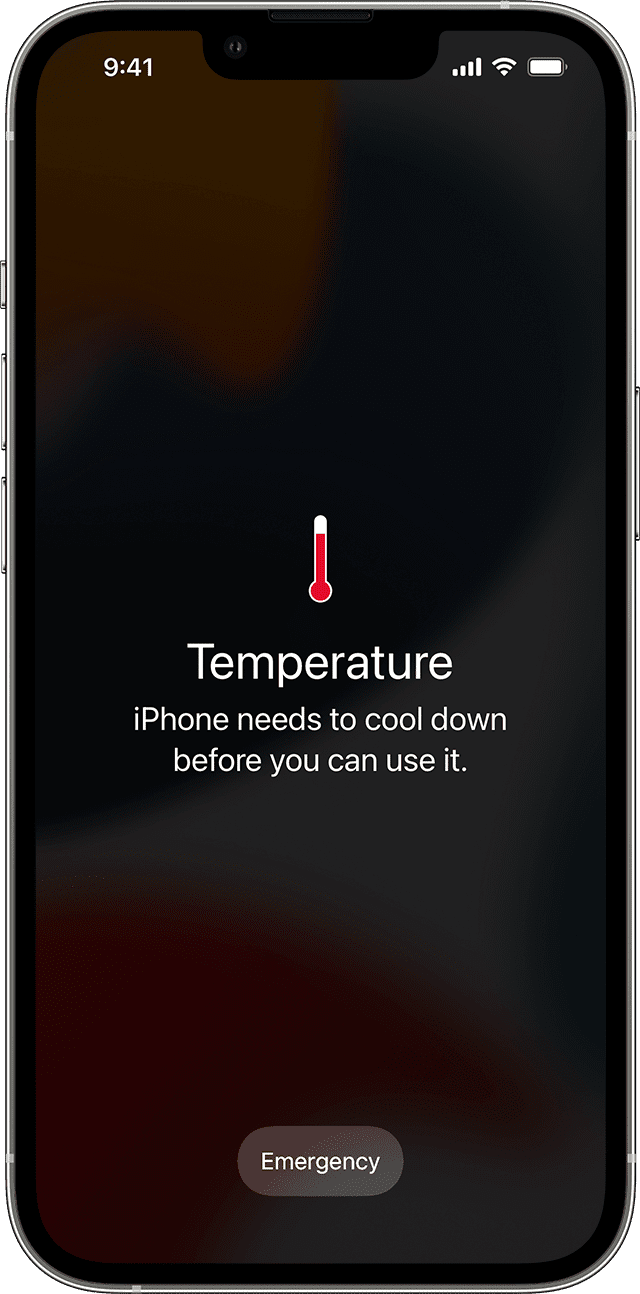
- Check for temperature warning – If you see a temperature warning screen, wait until it disappears
Apple’s Safe Temperature Range: iPhones operate best between 0°C to 35°C. Prolonged exposure above 35°C can permanently damage the battery!
Prevention Tips for Singapore:
- Never leave iPhone in parked car (can reach 60°C+)
- Avoid direct sunlight when using camera outdoors
- Use light-colored cases (dark cases absorb more heat)
- Don’t charge while using GPS or playing games
- Enable Low Power Mode in hot weather
2. Severe Battery Drain (iOS 18 Update Issue)
After iOS 18 updates, many users report battery dropping 40-50% in just a few hours. This is one of the most reported issues in 2026.
Common causes:
- Post-update background indexing (takes 24-48 hours)
- Background App Refresh eating power
- Location Services running constantly
- Battery health degraded (below 80%)
- iOS 18.2.1 specific bugs
Step-by-Step Fix:
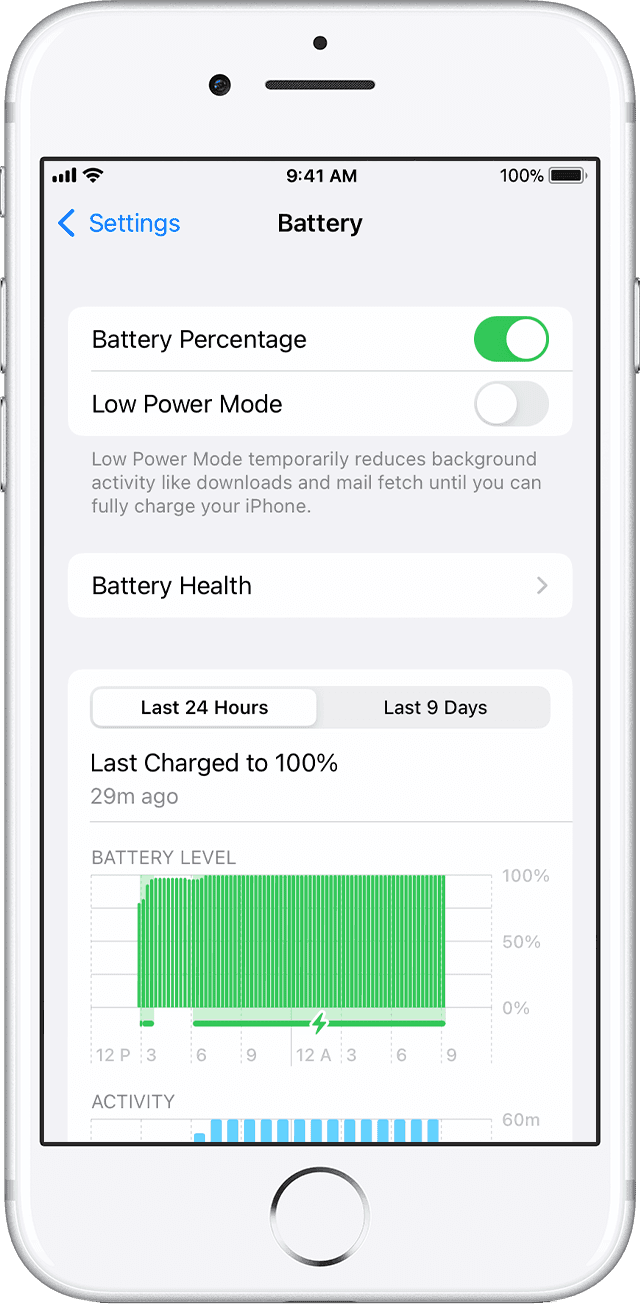
- Check which apps drain battery – Settings → Battery → See usage by app
- Enable Low Power Mode – Settings → Battery → Low Power Mode (ON) – Extends battery by 2-3 hours instantly
- Disable Background App Refresh for heavy apps – Settings → General → Background App Refresh → Select individual apps to turn off
- Turn off Location Services for non-essential apps – Settings → Privacy & Security → Location Services → Set apps to “While Using” or “Never”
- Reduce screen brightness – Control Center → Drag brightness to 40-50%
- Disable “Hey Siri” – Settings → Siri & Search → Listen for “Hey Siri” (OFF)
- Turn off 5G if not needed – Settings → Cellular → Cellular Data Options → Voice & Data → LTE
- Check Battery Health – Settings → Battery → Battery Health & Charging – If below 80%, battery replacement needed
After iOS Update: Wait 24-48 hours! Your iPhone indexes data after updates, causing temporary battery drain.
Persistent battery drain often requires an iPhone battery replacement service from qualified technicians.
3. Storage Full Warning (System Data Bug)
“iPhone Storage Full” message appearing constantly? iOS 18 has a known bug where System Data consumes 30-50GB of space!
Why it happens:
- iOS 18 system cache accumulation
- Temporary files not clearing
- Message attachments piling up
- Safari cache growing large
- App data not being managed
Step-by-Step Fix:
- Check storage breakdown – Settings → General → iPhone Storage – Wait for it to fully load (can take 2-3 minutes)
- Delete Recently Deleted items – Photos app → Albums → Recently Deleted → Select All → Delete – Messages → Edit → Show Recently Deleted → Delete All
- Clear Safari cache – Settings → Safari → Clear History and Website Data → Confirm – Can free up 1-3GB instantly
- Delete large message attachments – Settings → General → iPhone Storage → Messages → Review Large Attachments → Swipe left to delete videos/photos
- Offload unused apps – Settings → General → iPhone Storage → Tap app → Offload App – Removes app but keeps data
- Optimize Photos storage – Settings → Photos → Optimize iPhone Storage (requires iCloud Photos)
- Delete downloads – Files app → Browse → Downloads → Select → Delete
- Restart iPhone – Forces system to clear temporary cache
4. Face ID Not Working (iOS 18 Bug)
iOS 18.2.1 update caused Face ID authentication gaps in third-party apps like banking apps, social media, and password managers.
Common issues:
- Face ID fails in specific apps
- Works on lock screen but not apps
- Intermittent failures
- “Face ID not available” error
- Singapore humidity affecting sensors
Step-by-Step Fix:
- Clean TrueDepth camera area – Wipe notch/Dynamic Island with soft, dry microfiber cloth – Singapore’s humidity causes buildup
- Restart iPhone – Fixes temporary Face ID glitches
- Reset Face ID – Settings → Face ID & Passcode → Enter passcode → Reset Face ID → Set Up Face ID – Scan face in well-lit area, move head slowly in circle
- Check for obstructions – Remove screen protectors covering Face ID sensors – Clean any dust/debris from notch area
- Update affected apps – App Store → Profile → Update apps with Face ID issues
- Toggle Face ID for specific apps – Settings → Face ID & Passcode → Toggle OFF then ON for affected apps
- Delete and reinstall problematic apps – Long press app → Remove App → Delete → Reinstall from App Store
- Update iOS – Settings → General → Software Update
5. WiFi Constantly Disconnecting
iOS 18 introduced WiFi connectivity bugs. Your iPhone keeps dropping WiFi connection even when signal is strong.
Step-by-Step Fix:
- Forget and rejoin network – Settings → WiFi → Tap (i) next to network name → Forget This Network → Rejoin and enter password
- Toggle WiFi off and on – Settings → WiFi → Toggle OFF, wait 10 seconds, toggle ON
- Toggle Airplane Mode – Swipe up → Airplane Mode ON, wait 10 seconds, OFF – Resets all wireless connections
- Reset Network Settings – Settings → General → Transfer or Reset iPhone → Reset → Reset Network Settings – Enter passcode (this deletes all saved WiFi passwords)
- Restart iPhone – Fixes temporary networking glitches
- Turn off WiFi Assist – Settings → Cellular → WiFi Assist → OFF – Prevents auto-switching to cellular
- Update iOS – Settings → General → Software Update
6. Touchscreen Not Responding or Frozen
Screen completely frozen or not responding to touches? This happens more often in Singapore’s humid weather.
Method 1: Force Restart (Fixes 90% of Frozen Screens)
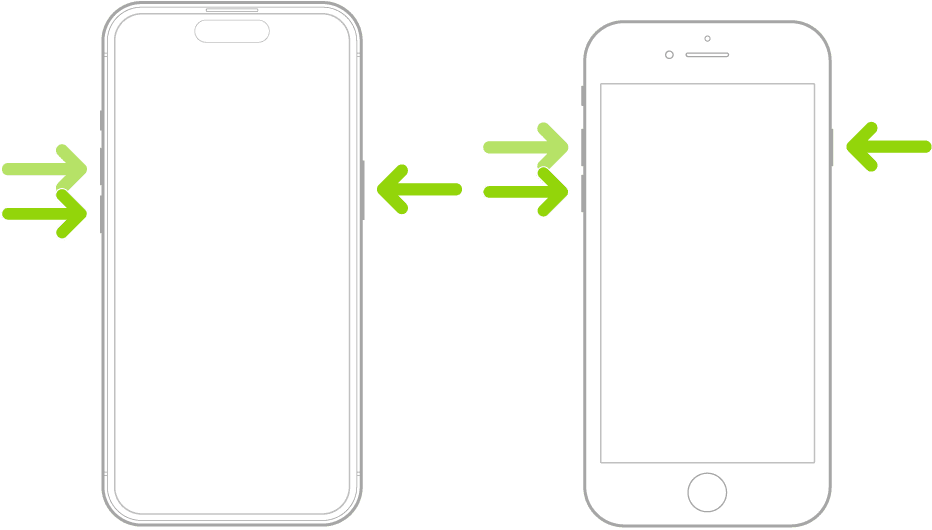
iPhone 8 and newer (including iPhone 15, 16):
- Quickly press and release Volume Up button
- Quickly press and release Volume Down button
- Press and HOLD Side button
- Keep holding for 10-15 seconds until Apple logo appears
- Release when logo shows
iPhone 7 / 7 Plus:
- Press and hold Volume Down + Side button
- Keep holding until Apple logo appears
iPhone 6s and earlier:
- Press and hold Home + Top/Side button
- Keep holding until Apple logo appears
Still Not Working? Screen might be physically damaged. Visit BreakFixNow for professional diagnosis – screen replacement typically takes 30-45 minutes!
7. Apps Crashing and Freezing (iOS 18 Bug)
iOS 18.2.1 caused apps to crash unexpectedly, freeze, or even cause the entire phone to reboot. This is a widespread reported issue in 2026.
Step-by-Step Fix:
- Update the crashing app – App Store → Profile icon → Scroll to Updates → Update specific app
- Force close the app – Swipe up from bottom → Find app → Swipe up to close – Reopen app
- Restart iPhone – Simple restart fixes most app crashes
- Free up storage – Settings → General → iPhone Storage – Apps need 1-2GB free space to run properly
- Delete and reinstall app – Long press app icon → Remove App → Delete App – App Store → Search app → Download
- Update iOS – Settings → General → Software Update
8. Camera Not Working or Blurry Photos
Camera app showing black screen, won’t focus, or photos are blurry? Essential issue to fix in photo-loving Singapore!
Step-by-Step Fix:
- Clean camera lens thoroughly – Use soft microfiber cloth – Gentle circular motion on all camera lenses – Singapore’s humidity causes smudges and moisture buildup
- Remove phone case – Some cases partially block camera or interfere with focus
- Force close Camera app – Swipe up from bottom → Swipe up on Camera app → Wait 5 seconds → Reopen Camera
- Test different camera modes – Switch between Photo, Portrait, Video – If one mode works, it’s likely software issue
- Restart iPhone – Fixes most camera app crashes
- Update iOS – Settings → General → Software Update
9. Bluetooth Won’t Connect (AirPods, Car, Speakers)
iOS 18 introduced Bluetooth connectivity bugs. Devices won’t pair, keep disconnecting, or audio cuts out.
Step-by-Step Fix:
- Toggle Bluetooth off and on – Settings → Bluetooth → Toggle OFF, wait 10 seconds, toggle ON
- Forget device and repair – Settings → Bluetooth → Tap (i) next to device → Forget This Device → Reconnect from scratch
- Restart both devices – Restart iPhone and Bluetooth device
- Reset Network Settings – Settings → General → Transfer or Reset iPhone → Reset → Reset Network Settings
- Update iOS – Settings → General → Software Update
10. iPhone Running Slow and Laggy
iPhone feels sluggish, apps take forever to open, animations stutter? Here’s how to speed it up.
Step-by-Step Fix:
- Close all background apps – Swipe up from bottom → Swipe up on all open apps
- Restart iPhone – Fixes temporary performance issues
- Check available storage – Settings → General → iPhone Storage – Need at least 2-3GB free
- Clear Safari cache – Settings → Safari → Clear History and Website Data
- Disable Background App Refresh – Settings → General → Background App Refresh → Off
- Reduce Motion and Transparency – Settings → Accessibility → Motion → Reduce Motion (ON) – Settings → Accessibility → Display & Text Size → Reduce Transparency (ON)
- Update iOS – Settings → General → Software Update
- Check battery health – Settings → Battery → Battery Health & Charging – If below 80%, battery causing CPU throttling
When to Get Professional Repair
Visit BreakFixNow Singapore if:
- Hardware damage – Cracked screen, broken buttons, damaged charging port
- Water/liquid damage – iPhone exposed to water, drinks, or liquids
- Battery health below 80% – Needs professional replacement
- Won’t turn on at all – Could be motherboard issue
- None of these fixes work – Deeper hardware problem
Prevention Tips for Singapore iPhone Users
For Our Tropical Climate:
- Never leave iPhone in parked car – Temperatures can reach 60-70°C
- Avoid direct sunlight – Especially when using camera or GPS outdoors
- Use breathable cases – Avoid thick rubber cases that trap heat
- Regular cleaning – Wipe down weekly to prevent humidity-related buildup
- Store in cool, dry place – Air-conditioned room when possible
General Maintenance:
- Update iOS regularly – Bug fixes and security patches
- Restart weekly – Clears memory and refreshes system
- Check storage monthly – Delete before it gets critical
- Backup regularly – iCloud or computer backup weekly
- Use certified accessories – Avoid cheap cables and chargers
Frequently Asked Questions
Should I wait 24-48 hours after iOS update before troubleshooting battery drain?
Yes! After major iOS updates, your iPhone performs background indexing which temporarily drains battery. Wait 2 days before assuming there’s a problem. Keep iPhone plugged in overnight during this period.
How often should I restart my iPhone?
Once a week is ideal. Weekly restarts clear temporary files, refresh RAM, and fix minor glitches before they become problems.
Is it safe to use iPhone in Singapore’s heat and humidity?
Yes, but with precautions. Apple’s operating range is 0-35°C. Singapore often exceeds this outdoors. Avoid direct sunlight, never leave in hot car, and give your iPhone breaks when it feels warm.
Will force restarting delete my data?
No! Force restart is completely safe and doesn’t delete anything. It’s like pressing the reset button on a computer—just reboots the system without touching your files, photos, or apps.
When should I replace my iPhone battery?
When battery health drops below 80%. Check in Settings → Battery → Battery Health. Below 80%, you’ll experience significant performance throttling and rapid battery drain. BreakFixNow offers same-day battery replacement with 3-month warranty.
Why does my iPhone work fine in aircon but lag outside?
Heat causes automatic CPU throttling. When iPhone temperature rises above 35°C, it intentionally slows down processing to prevent damage. This is very common in Singapore’s outdoor heat—your phone is protecting itself!
iPhone Still Not Working? We Can Help!
WhatsApp Now: +65 9750 4333
Service Hours: Monday-Saturday, 10 AM – 8 PM
Locations: Islandwide service across Singapore
✓ Free Diagnostic
✓ Same-Day Repair
✓ Genuine Parts
✓ 3-Month Warranty