
Your iPhone shows “Error 14” during an iOS update. iTunes can’t restore your device. The update stops at the Apple logo or enters recovery mode. This error prevents you from updating your iPhone completely.
After fixing over 600 Error 14 cases at BreakFixNow Singapore, we’ve identified the exact causes and solutions—both DIY fixes and professional repairs.
What Is iPhone Error 14?
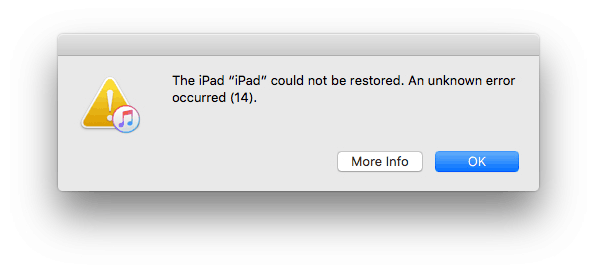
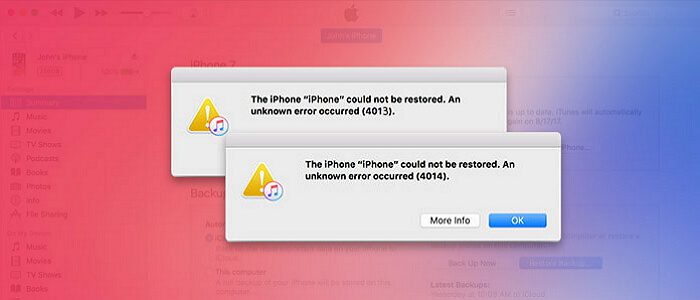
Error 14 appears when your iPhone fails to update or restore. You’ll see: “The iPhone [device name] could not be restored. An unknown error occurred (14).”
Common symptoms:
- iPhone stuck on Apple logo during update
- Device enters recovery mode and won’t exit
- Restore process fails halfway
Why Error 14 Happens
1. Insufficient Storage Space (50% of cases)
- iOS updates require 5-8GB free space
- Photos, videos, apps filling storage
2. USB Connection Problems (25%)
- Damaged or non-certified cable
- Faulty USB port
3. Software Issues (15%)
- Outdated iTunes/Finder
- Low Power Mode enabled
4. Hardware Problems (10%)
- Degraded battery
- Logic board faults
Step-by-Step Fixes
Fix 1: Free Up Storage Space (Solves 50%)
iOS updates need 5-8GB free space.
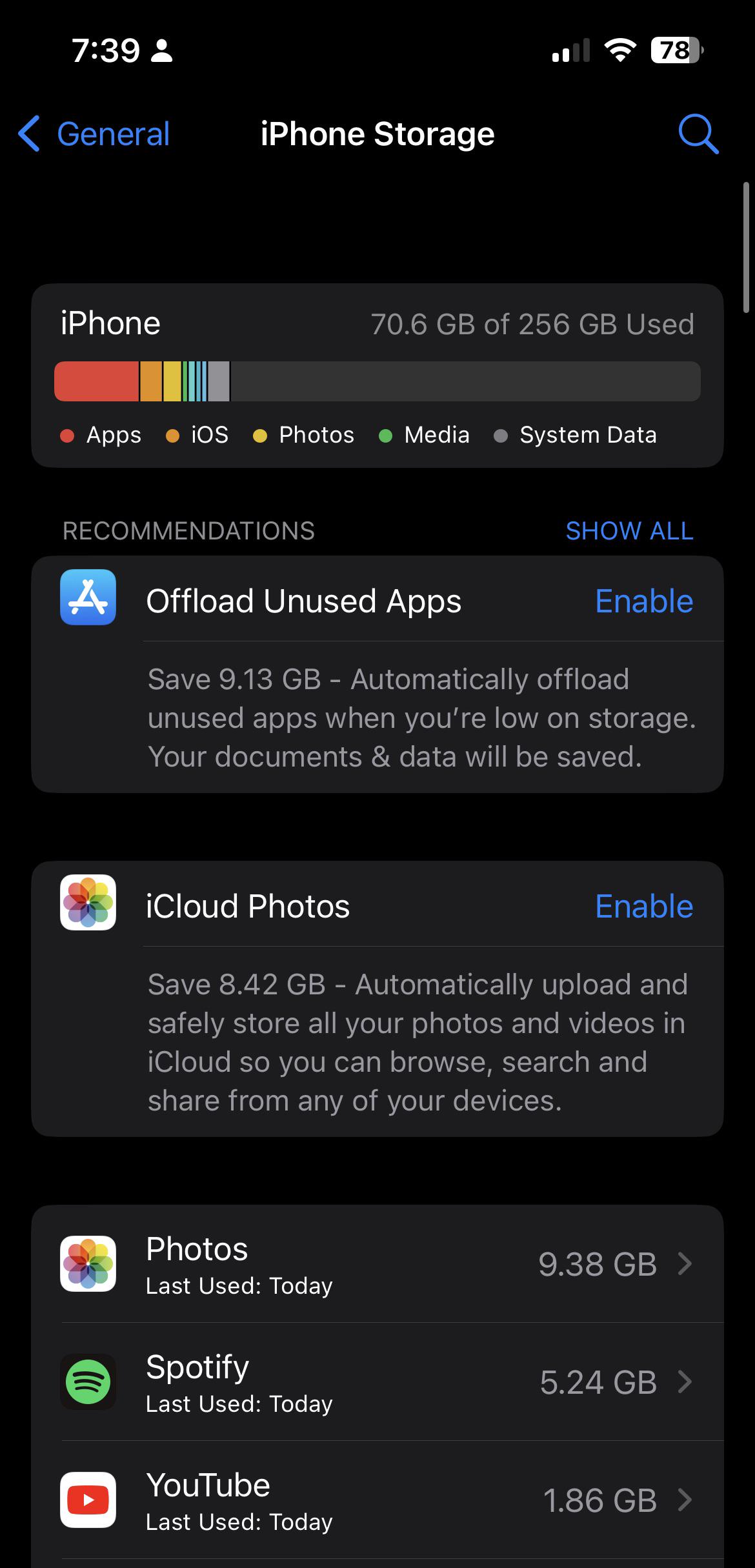
Steps:
- Go to Settings → General → iPhone Storage
- Check “Available” space—need 5-8GB minimum
- Delete unused apps
- Delete old photos/videos (backup first)
- Clear Safari cache (Settings → Safari → Clear History)
Singapore Tip: Use Google Photos or OneDrive to backup before deleting.
Fix 2: Check USB Cable
- Use original Apple or MFi-certified cable
- Check for cable damage
- Plug directly into computer USB port (not hub)
- Try different USB ports
- Clean iPhone charging port with compressed air
Fix 3: Disable Low Power Mode
- Go to Settings → Battery
- If toggle is green, tap to disable Low Power Mode
- Try update again
Fix 4: Update iTunes/Finder
Mac: Apple menu → System Settings → Software Update
Windows: iTunes → Help → Check for Updates
Fix 5: Force Restart
iPhone 8 and newer:
- Press and release Volume Up
- Press and release Volume Down
- Hold Side button until Apple logo appears
iPhone 7: Hold Volume Down + Side button (10 seconds)
iPhone 6s and earlier: Hold Home + Power button (10 seconds)
Fix 6: Use Recovery Mode
- Connect iPhone to computer
- Open iTunes/Finder
- Force restart but keep holding when Apple logo appears
- Hold until “Connect to iTunes” screen shows
- Click “Update” (preserves data)
- Wait 15-30 minutes
Warning: Choose “Update” to keep data. “Restore” erases everything.
Professional Repair Singapore
If DIY fixes fail, hardware issues may be the cause.
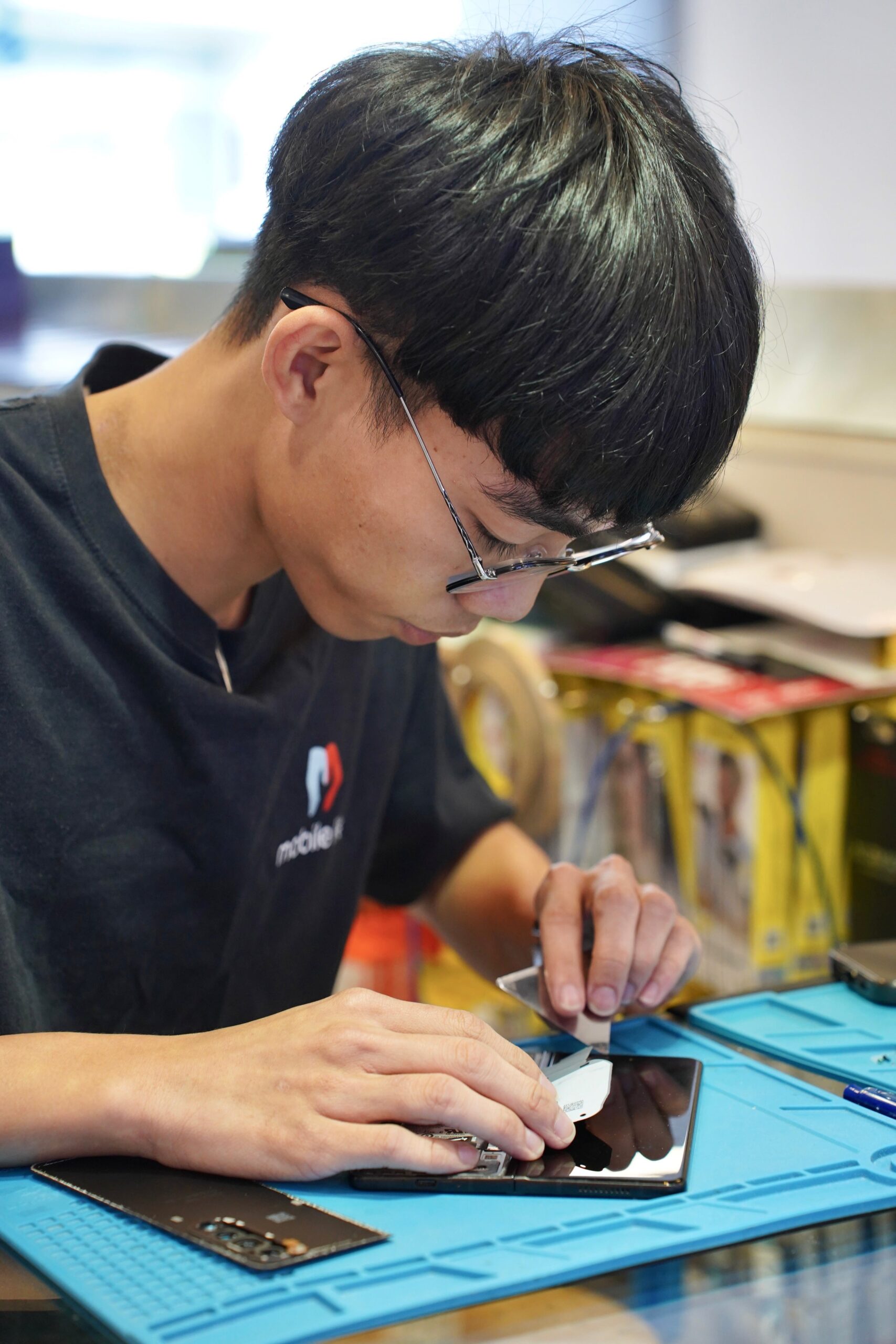
BreakFixNow diagnostic:
- Free 15-minute diagnostic
- Identify exact component causing Error 14
- Quote before repair
- Same-day service
Common repairs:
- Battery replacement (degraded batteries)
- Charging port repair
- Logic board repair
- NAND flash memory repair
Pricing:
- Diagnostic: Free
- Battery replacement: S$50-80
- Charging port: S$60-100
- Logic board: S$120-300
Warranty: 3 months on all repairs
Frequently Asked Questions
What causes iPhone Error 14?
Error 14 is caused by: (1) Insufficient storage—need 5-8GB free (50% of cases), (2) USB cable/port issues (25%), (3) Outdated iTunes or Low Power Mode (15%), or (4) Hardware like degraded battery (10%).
Can I fix Error 14 myself?
Yes, in most cases. Free up 5-8GB storage, use original Apple cable, disable Low Power Mode, update iTunes, and force restart iPhone. If none work, it’s likely hardware damage requiring professional repair.
How much storage do I need?
Need 5-8GB free. Go to Settings → General → iPhone Storage. Delete unused apps, photos, videos. Clear Safari cache. Aim for 10GB+ for smooth updates.
Will fixing Error 14 delete data?
Storage cleanup, cable changes, iTunes updates, and force restart won’t delete data. Recovery Mode “Update” preserves data. “Restore” erases everything. Always backup first.
Repair cost in Singapore?
BreakFixNow: Free diagnostic, Battery S$50-80, Charging port S$60-100, Logic board S$120-300. 3-month warranty, same-day service. 90% are software issues (free DIY fixes).
Get Expert Help Today
Can’t fix Error 14? BreakFixNow offers same-day diagnostic and repair.
WhatsApp: +65 9750 4333
✓ Free Diagnostic • ✓ Same-Day Service • ✓ 3-Month Warranty