
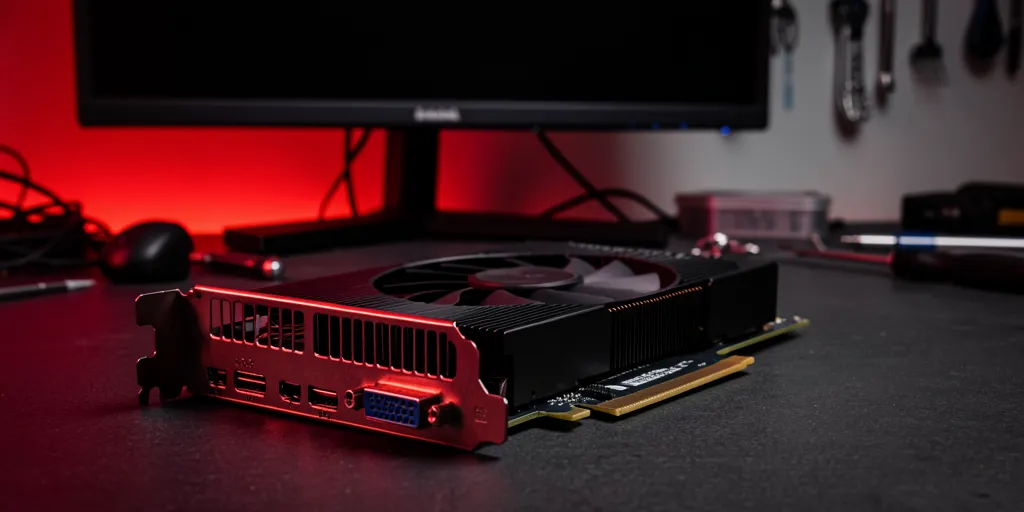
You press the power button. Your desktop hums to life — fans spin, lights flicker — but the monitor stays black. No signal, no POST screen, nothing. If this sounds familiar, you’re dealing with one of the most frustrating PC faults: a GPU with no display output.
The good news: not all no-display faults mean a dead graphics card. Many are caused by simple issues you can fix at home in under 10 minutes. This guide walks through every common cause — from the obvious to the overlooked — and tells you what to try before heading to a repair shop.
Why Is My GPU Showing No Display?
A no-display fault can originate from multiple points in the display chain — not just the GPU itself. Before assuming the graphics card is dead, it’s worth understanding all the things that can cause a black screen on boot:
- The GPU is not seated properly in the PCIe slot
- PCIe power connectors are loose or not connected
- The monitor cable is faulty or connected to the wrong port
- The monitor is set to the wrong input source
- The BIOS is outputting to integrated graphics instead of the GPU
- A driver crash or corrupted GPU driver
- The GPU display port (HDMI, DisplayPort, DVI) has failed
- The GPU has overheated and gone into thermal shutdown
- VRAM failure causing the GPU to fail POST
- The GPU has physically failed (dead chip, blown capacitor, failed VRM)
Step 1 – Check the Obvious First
Check Your Monitor and Cable
- Try a different cable (HDMI, DisplayPort, DVI). Cables fail more often than people expect.
- Try a different monitor or TV.
- Check the monitor input source — press the input/source button and make sure it matches the port you’re using.
- Make sure the monitor is receiving power — some show a completely black screen when the power cable is loose.
Check Which GPU Port You’re Plugged Into
If your CPU has integrated graphics, your motherboard has its own display ports on the rear I/O panel. Plug into the GPU ports (on the graphics card itself, not the motherboard) and ensure BIOS is set to use the PCIe/discrete GPU as primary display.
Step 2 – Reseat the GPU
A GPU not fully seated in its PCIe slot will often power on (fans spin, RGB lights up) but produce no display. This is one of the most common causes, especially after a PC has been moved.
- Power off and unplug the PSU from the wall.
- Press the PCIe slot release latch and remove the GPU.
- Clean the gold contacts with a dry lint-free cloth or eraser.
- Firmly reinsert the card until you feel the PCIe latch click.
- Reconnect all power cables, power on and test.
Step 3 – Check PCIe Power Connectors
- Make sure all PCIe power connectors are fully and firmly seated — they should click in.
- Check for bent or damaged pins on the cable or GPU connector.
- If using a modular PSU, ensure cables are connected at the PSU end too.
- On RTX 4090/4080: make sure all four 8-pin connectors feeding the 16-pin adapter are seated.
Step 4 – Clear CMOS
- Power off and unplug from the wall.
- Locate the round CMOS battery on the motherboard.
- Remove it and wait 30–60 seconds.
- Reinsert, reconnect power and boot.
Step 5 – Test With Integrated Graphics
Temporarily remove the GPU and plug directly into the motherboard display ports. If you get a display, the fault is isolated to the GPU. If you still get nothing, the issue may be CPU, RAM, motherboard, or PSU — not the GPU.
Step 6 – Check for Overheating
- Listen when the PC boots — are GPU fans spinning? If not, fan failure may be causing thermal shutdown.
- Check if heatsink fins are clogged with dust and blow them out.
- Dried thermal paste can cause overheating — a repaste can drop temps by 15–25°C.
Step 7 – Driver Issues
- Boot into Safe Mode (F8 or F11 during boot).
- If you get a display in Safe Mode, the hardware is fine — it’s a driver conflict.
- Use DDU (Display Driver Uninstaller) in Safe Mode to fully remove the GPU driver, then reinstall the latest from Nvidia or AMD.
When It’s Actual Hardware Failure
Dead Output Port
Individual HDMI or DisplayPort connectors can fail. Try every output port with a different cable. If one port works and others don’t, only the port has failed — a technician can often replace it.
VRAM Failure
Failed VRAM chips cause no-display on boot alongside artifacting and VIDEO_TDR_FAILURE BSODs. Can sometimes be resolved by reflowing; severe cases need VRAM replacement.
GPU Core / Die Failure
The GPU die can fail from solder joint cracking, power surge, or age. Reflow or reballing can restore function in many cases but requires specialist equipment.
VRM / Power Delivery Failure
A failed VRM mosfet or capacitor can cause the card to power on with no output, or crash under load. VRM repairs require component-level soldering and are not a DIY fix.
Quick Diagnosis Summary
| Symptom | Most Likely Cause | Fix |
|---|---|---|
| No display, fans spin, RGB on | Loose PCIe slot or power connector | Reseat GPU and power cables |
| No display after hardware swap | BIOS output set to wrong display | Clear CMOS / update BIOS settings |
| No display after driver update | Driver conflict or corruption | Boot safe mode, DDU, reinstall driver |
| No display, fans not spinning | Fan failure / thermal shutdown | Fan replacement + repaste |
| Some ports work, others don’t | Dead output port | Port replacement (repair shop) |
| No display + artifacting before failure | VRAM failure | Reflow / VRAM replacement (repair shop) |
| No display, iGPU works fine | GPU core / VRM failure | Component-level repair (repair shop) |
When to Bring It In for Professional Repair
If you’ve worked through all the steps above and still have no display — or your card shows signs of physical damage or burnt smell — it’s time for a professional diagnosis.
At BreakFixNow, we diagnose GPU no-display faults for free. We test display output, VRAM stability, fan operation, and power delivery, then give an upfront quote before any repair begins. Most simple faults are resolved same-day. Component-level repairs typically take 1–3 days.
👉 See our full Graphics Card Repair Singapore page for pricing, repair types, and what to bring in. Walk-in at 62 Queen St, Singapore — no appointment needed. WhatsApp: +65 9750 4333
FAQ – GPU No Display
My GPU fans spin but there’s no display — is the card dead?
Not necessarily. Fans spinning with no display is one of the most common symptoms of a loose PCIe connection or unseated power cable. Work through the reseating and power connector checks first.
How do I know if it’s the GPU or the monitor?
Test with a different monitor and cable. If you still get no display on a known-working monitor with a different cable, the issue is with the GPU or PC — not the monitor.
Is GPU no display always a hardware problem?
No. Driver corruption, BIOS misconfiguration, and Windows updates can all cause sudden no-display symptoms on a physically healthy GPU. Always check software causes first.
My GPU worked yesterday and now there’s no display — what happened?
Sudden failures are often caused by a Windows update corrupting the GPU driver, a capacitor or solder joint finally failing after heat cycling, or a power event. Run through the checklist above to narrow it down.
Can a GPU show no display but still work for compute tasks?
Yes — in rare cases, the display output circuitry can fail while the GPU core remains functional for CUDA/OpenCL tasks. More common in professional/workstation cards.