
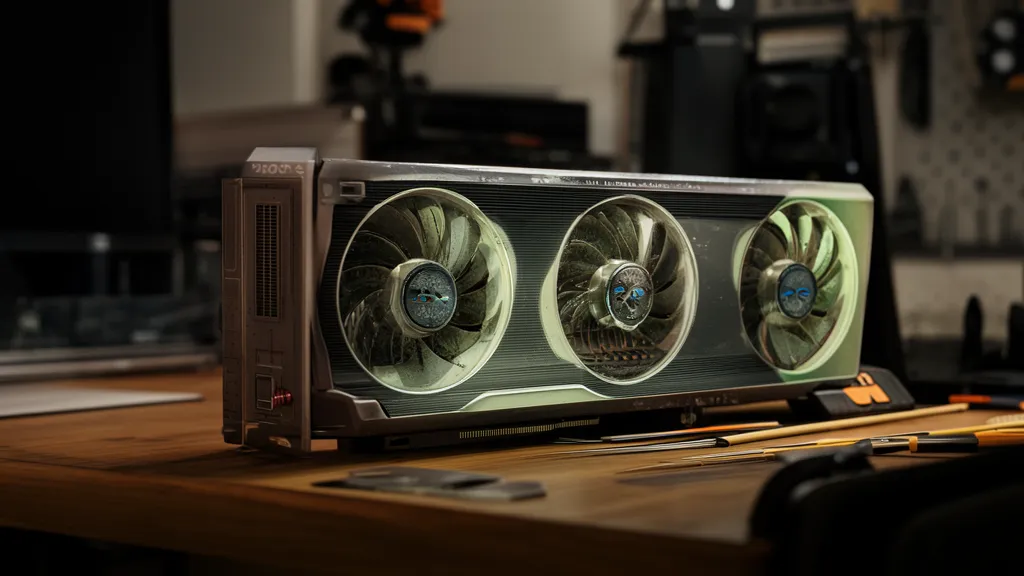
Your graphics card’s fans are its first line of defence against heat damage. When something goes wrong with them — grinding noise, no spin, or constantly screaming at full speed — it’s a signal worth paying attention to. Left alone, a fan problem becomes a thermal problem, and a thermal problem becomes a hardware problem.
This guide covers every common GPU fan issue: what each symptom actually means, how to diagnose the fault, how to clean your fans properly, and when cleaning isn’t enough and the fan needs replacing.
Fan fault on your graphics card? BreakFixNow diagnoses and repairs GPU fan issues — fan replacement, thermal paste service, and full cooling system assessment. Walk in to our Queen St outlet, no appointment needed. See our graphics card repair service →
GPU Fan Making Noise — What Each Sound Means
Fan noise is one of the clearest diagnostic signals a graphics card gives you. Different sounds point to different faults — and knowing which is which tells you whether you have a minor issue or a card that needs immediate attention.
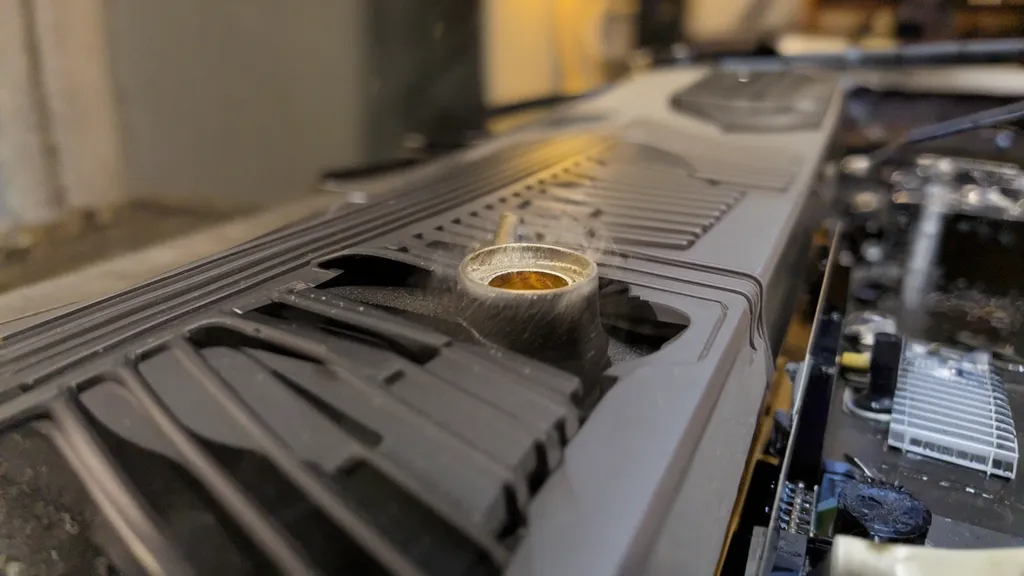
Grinding or Rattling Noise
What it sounds like: A rough, mechanical grinding, often louder under gaming load when fans spin faster.
What it means: The fan bearing is failing. GPU fans use small sleeve or ball bearings that wear out over time — accelerated by dust, heat, and age. Singapore’s heat and humidity speed this up significantly. Once the bearing starts grinding, it will continue to deteriorate until the fan seizes completely.
Urgency: High. A grinding fan will eventually stop spinning entirely. When it does, the card will overheat within minutes of any load. Don’t ignore grinding — it’s a countdown.
Rattling or Ticking at Low Speed
What it sounds like: An irregular rattle or tick, often worse at low RPM and sometimes disappearing at higher speeds.
What it means: Most likely a piece of debris — dust clump, stray wire, or small object — making intermittent contact with a fan blade. Less commonly, a fan blade has cracked or warped slightly and is catching on the shroud.
What to do: Power off completely, open the case, and inspect the fans visually. A large dust clump caught between a blade and the shroud is fixable by cleaning. A cracked or warped blade means the fan needs replacing.
Fan Running at Full Speed Constantly
What it sounds like: A loud, consistent roar that doesn’t vary with workload — the same at idle as under gaming load.
What it means: The fan controller is not receiving temperature data correctly, so it defaults to maximum RPM as a safety measure. This can be caused by a temperature sensor fault, a driver issue, or a fan controller problem on the card. It can also mean the card is genuinely running extremely hot and the fans are responding correctly — check your temperatures first using HWiNFO64.
What to do: Check GPU temperatures. If they’re normal (under 75°C idle), the issue is likely the fan controller or drivers. If temperatures are high, the fans are doing their job and the underlying thermal issue needs fixing first.
Pulsing or Stuttering Fan Noise
What it sounds like: The fan spins up, slows, spins up again — a rhythmic pulsing rather than a steady hum.
What it means: Usually a fan that’s struggling to spin — the motor is trying to start but lacking the power or bearing smoothness to maintain consistent rotation. This is often a failing fan in the early stages, or a PWM (fan speed control) signal issue.
GPU Fan Not Spinning — Normal or Fault?
This is one of the most common GPU panic moments — you look at your card and the fans aren’t moving. Before assuming something is broken, understand how modern GPU fan control works.
Zero-RPM Mode — When No Spin Is Normal
Most graphics cards made in the last 5–6 years include a zero-RPM (0dB) mode. When the GPU temperature is below a set threshold — typically 50–60°C — the fans stop completely. The card is cool enough to be passively cooled by the heatsink and airflow from case fans alone.
This is intentional and correct behaviour. The fans will spin up automatically once temperatures rise above the threshold. To confirm this is what’s happening: open HWiNFO64 or GPU-Z and check the GPU temperature. If it’s below 60°C and the fans are not spinning, the card is working exactly as designed.
When Fan Not Spinning Is a Real Fault
If the GPU temperature is above 70°C and the fans are still not moving, that is a genuine failure. Causes include:
- Seized fan bearing. The bearing has failed completely and the fan cannot rotate even when the motor tries to drive it. You may see the fan twitch slightly but fail to spin up.
- Disconnected fan header. The fan’s power connector has worked loose from the PCB — sometimes happens after cleaning or moving the PC. Open the case and check the small connector where each fan attaches to the card.
- Failed fan motor. The motor itself has burned out. No amount of power will spin it.
- Fan controller fault. The PWM controller on the card is not sending a signal to the fan. The fan is fine but isn’t receiving instruction to spin.
⚠️ If your GPU fan is not spinning and temperatures are climbing above 80°C: Stop using the card immediately. Running a GPU at high temperature with no active cooling will cause permanent damage to VRAM and VRM components within minutes of heavy load.
How to Clean GPU Fans Properly
Dust is the most common cause of elevated GPU temperatures in Singapore. The combination of humidity and heat causes dust to clump and pack densely into heatsink fins and around fan blades — more aggressively than in drier climates. Cleaning every 6–12 months is good practice here.
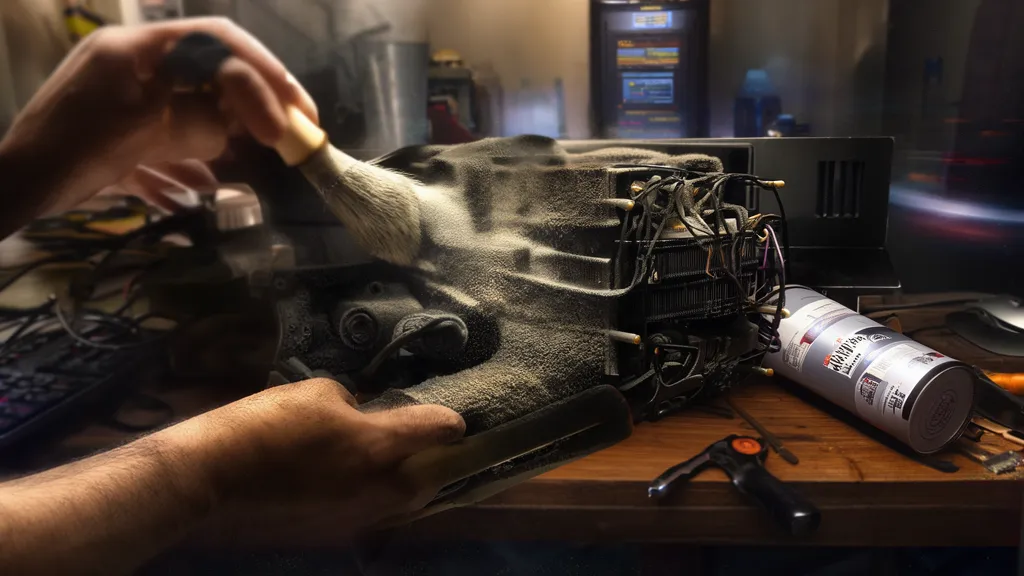
What You Need
- Compressed air can (available at any electronics or hardware store in Singapore)
- Soft brush (a clean paintbrush or anti-static brush works well)
- Isopropyl alcohol 90%+ and cotton swabs (for blade wipe-down)
- Toothpick or tweezers (for removing stubborn clumps)
Step-by-Step Cleaning
- Power off completely and unplug. Don’t just sleep the PC — fully power off and remove the power cable. Wait 60 seconds for capacitors to discharge.
- Hold fans still before using compressed air. Place a finger or pencil through the fan grill to stop the blades from spinning while you blow. Letting fans spin freely from compressed air can damage the bearings.
- Blow air into the heatsink fins from the exhaust side. Direct the compressed air into the vent openings at the back of the card — this pushes dust out in the direction it came from. Blowing inward packs it deeper.
- Brush the fan blades. Use a soft brush to sweep dust off each blade. For stubborn clumps, a toothpick can dislodge debris without scratching.
- Wipe blades with isopropyl alcohol. Dampen a cotton swab lightly and wipe each blade. This removes oily dust residue that a brush alone won’t clear. Let it dry fully before powering on.
- Check fan clearance. After cleaning, spin each fan manually with a finger to confirm it rotates freely with no scraping or resistance.
When Cleaning Isn’t Enough — Signs the Fan Needs Replacing
Cleaning fixes dust-related issues. It doesn’t fix mechanical or electrical faults. Replace the fan when:
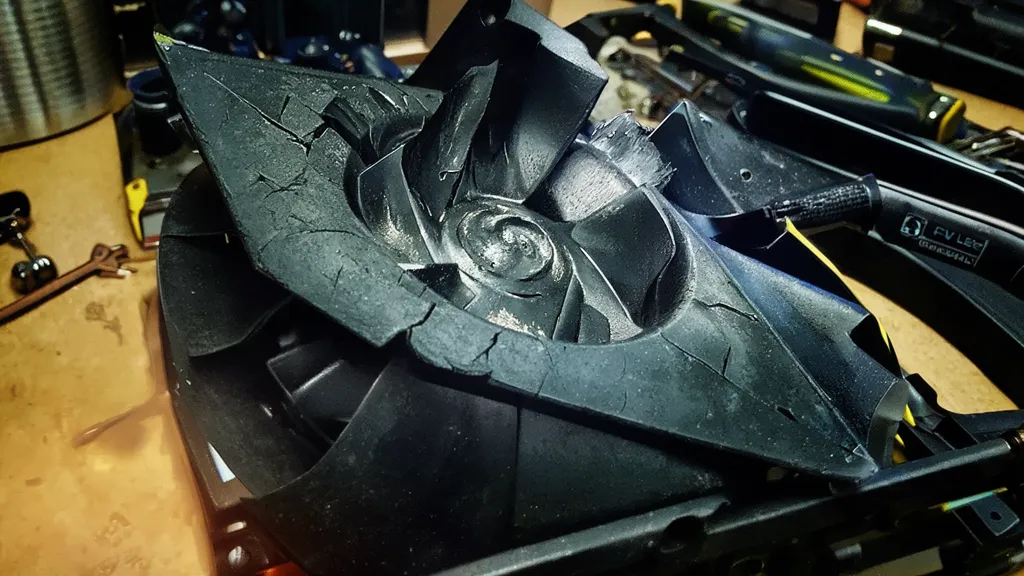
- Grinding or bearing noise persists after cleaning. The bearing is worn and no amount of dust removal will restore it. Once a bearing grinds, it will seize.
- The fan won’t spin even when temperatures are high. If the motor is seized or dead, cleaning won’t help.
- A blade is cracked, chipped, or visibly warped. Even a small crack will worsen with vibration and eventually cause the blade to break off — which can damage the heatsink fins.
- Temperatures remain high after thorough cleaning. If you’ve cleaned the fan and heatsink thoroughly and temperatures are still elevated, the thermal paste is the next variable — see our GPU thermal paste service.
- The fan is completely dead with no response. A seized or burned-out motor needs a fan replacement, not a cleaning.
GPU Fan Replacement in Singapore
GPU fan replacement is one of the most common repairs at BreakFixNow. The job involves sourcing a compatible fan (or compatible replacement), carefully disassembling the cooler shroud, replacing the fan, and reassembling with correct torque on all screws.
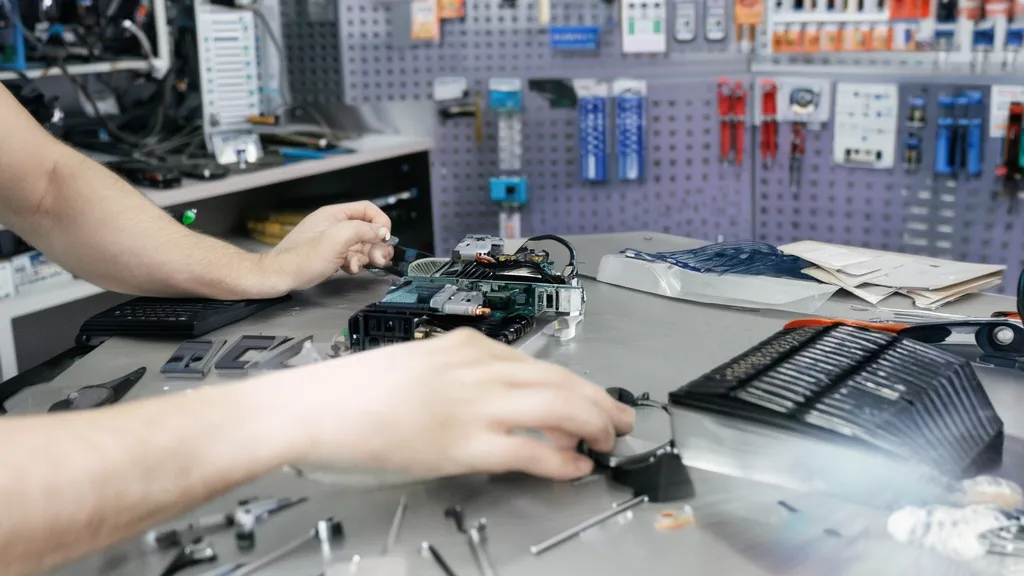
A few things worth knowing before deciding between DIY and professional replacement:
- Replacement fans are model-specific. GPU fans are not universal — the blade diameter, connector type, and mounting holes are unique to each GPU model and AIB partner variant (ASUS, Gigabyte, MSI, EVGA, Zotac etc.). Using the wrong fan creates vibration, noise, and sometimes won’t mount at all.
- Cooler screw torque matters. GPU cooler screws have a specific tightening sequence and torque. Over-tightening warps the cooler plate, creating uneven contact with the GPU die and causing hot spots. Under-tightening causes rattles and poor contact.
- Fan replacement is a good time to repaste. Once the cooler is off for fan replacement, it costs nothing extra in labour to replace the thermal paste and thermal pads at the same time — and on a card old enough to need a fan, the paste is likely due for replacement anyway.
Frequently Asked Questions
Why is my GPU fan so loud suddenly?
Sudden loudness is usually one of three things: dust buildup causing the fan to work harder for the same airflow, a failing bearing starting to grind, or genuine high temperatures (check in HWiNFO64) causing the card to ramp fans to maximum. Check temperatures first, then inspect for dust.
My GPU fans aren’t spinning at idle — is this normal?
Yes, for most modern cards. Zero-RPM mode stops fans at low temperatures to reduce noise. Fans will spin up automatically once the GPU reaches 50–60°C. Run a game or benchmark for 5 minutes — if fans start spinning as temperatures rise, the card is working correctly.
Can I use WD-40 or oil to fix a grinding GPU fan?
No. WD-40 is a solvent, not a lubricant, and will damage fan bearings further. Specialist fan bearing lubricant (like Nye lubricant) can temporarily quiet a grinding bearing, but it’s a short-term fix at best — the bearing is already worn and replacement is the correct solution.
How much does GPU fan replacement cost in Singapore?
At BreakFixNow, GPU fan replacement starts from $40 for the service, plus the cost of the replacement fan. Exact pricing depends on the GPU model and fan availability. WhatsApp us your GPU model for a quick estimate.
How often should I clean my GPU fans in Singapore?
Every 6–12 months is recommended for Singapore’s climate. The combination of heat and humidity causes dust to clump and build up faster than in cooler, drier environments. If you game daily or the PC is in a non-air-conditioned room, lean toward every 6 months.
Can a dirty GPU fan cause artifacting or crashes?
Yes — indirectly. A dust-clogged fan causes temperatures to rise. High temperatures cause thermal throttling, instability, and in severe cases, crashes and artifacting as VRAM and GPU core components are stressed beyond their thermal limits. Clean fans are directly linked to stable performance.
My GPU fan makes noise only at a specific RPM then goes quiet — what’s that?
This is a harmonic resonance point — the fan vibrates at a particular frequency that matches a natural resonance in the cooler shroud or card. It’s usually harmless but can indicate slight blade imbalance from uneven dust or a small chip. Clean the blades thoroughly and check if it persists.
GPU Fan Problem? We Can Help.
👉 WhatsApp: +65 9750 4333
📍 62 Queen St, CYFL 04, Singapore 188541
✓ Free diagnosis ✓ Fan replacement ✓ Thermal paste from $40 ✓ 90-Day Warranty