
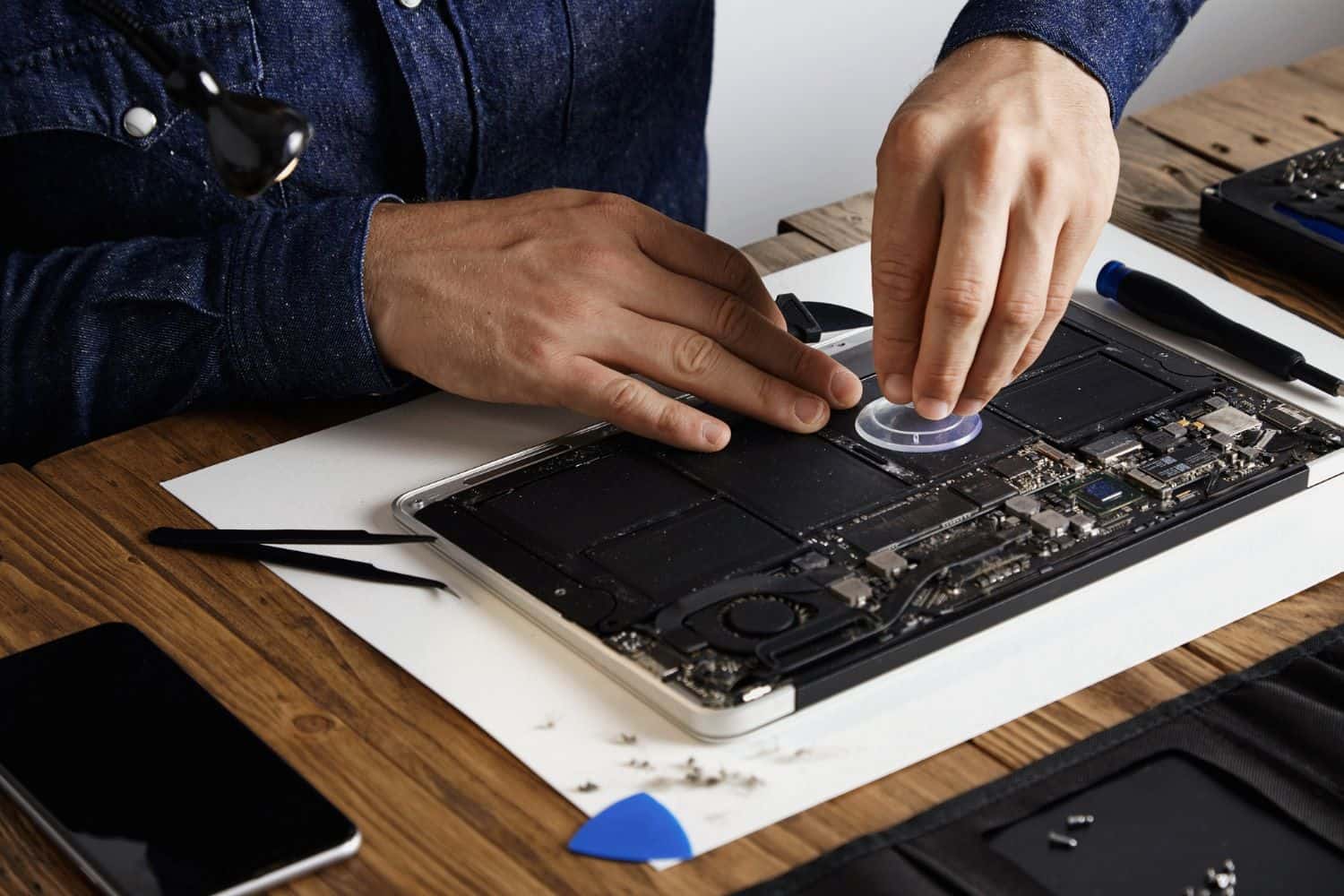
Your SSD is working perfectly right now. Fast boots, instant file access, no complaints. Then one morning you open your laptop and nothing. The drive is gone. Windows won’t load. Your files — years of work, photos, documents — are inaccessible.
This isn’t a horror story. It happens every week at BreakFixNow. And the most common thing customers say when they bring in a dead drive is: “There was absolutely no warning.”
That’s the thing about SSD failure that most people don’t know — it’s fundamentally different from HDD failure. A hard drive usually tells you it’s dying. An SSD often doesn’t.
SSD showing warning signs? If CrystalDiskInfo is showing Caution or your drive is behaving strangely, act now. BreakFixNow can migrate your data to a new drive before it fails completely. See our data migration service →
Why SSDs Fail Without Warning
HDDs fail mechanically — the spinning platter degrades, the read head starts catching, and you get audible warning signs: clicking, grinding, the infamous “click of death.” It’s dramatic, but at least it gives you time to act.
SSDs have no moving parts. They store data in NAND flash memory cells — tiny electrical charges held in floating gate transistors. When those cells fail, there’s no mechanical event to warn you. The drive just stops responding. No noise. No slowdown. No error. Just gone.
This is why SSD failure feels so sudden and brutal compared to HDD failure. Technically the degradation happens at the cell level over time — but from the user’s perspective it’s exactly that: one moment it works, the next it doesn’t.
How SSDs Actually Fail — The 5 Real Causes
1. NAND Cell Wear-Out (P/E Cycles)
Every NAND cell can only be written to a limited number of times — called Program/Erase (P/E) cycles. Budget SSDs using QLC NAND might handle 1,000 P/E cycles. Quality MLC or TLC drives handle 3,000–10,000. Once a cell hits its limit, it can no longer reliably hold a charge and gets marked as bad.
The SSD controller manages this through wear levelling — spreading writes across all cells evenly so no single area wears out first. But eventually, if enough cells go bad, the drive can no longer function. For most users doing normal daily tasks, this takes years. For drives used in heavy write workloads (video editing, databases, virtual machines), it can happen sooner.
2. Sudden Power Loss During a Write
SSDs are vulnerable to power interruptions mid-write in a way HDDs aren’t. When a write operation is in progress and power cuts suddenly — a flat battery dying instantly, a power outage, a forced shutdown — the partially written data can corrupt the NAND cells or the drive’s internal mapping table (the FTL — Flash Translation Layer).
When the FTL is corrupted, the SSD cannot find where anything is stored. From the outside, it looks like a dead drive. The data is often physically intact on the NAND chips, but completely inaccessible without specialist recovery tools.
⚠️ Singapore note: Frequent power fluctuations and ageing laptop batteries dying suddenly are a common cause of this type of SSD failure here. If your laptop battery drops from 20% to 0% instantly, that’s a risk event every time it happens.
3. Controller Chip Failure
The SSD controller is a dedicated processor that manages everything — wear levelling, error correction, the FTL mapping, read/write scheduling. If the controller chip fails due to heat stress, a manufacturing defect, or electrical damage, the drive becomes completely unresponsive even though the NAND chips containing your data are perfectly fine.
This is one of the most frustrating failure modes because the data is physically there and intact — it just can’t be accessed without replacing or bypassing the controller, which requires specialist equipment.
4. Heat and Singapore’s Humidity
SSDs are more tolerant of heat than HDDs, but sustained high temperatures still accelerate NAND cell degradation. In Singapore’s climate — 30°C+ ambient with high humidity — laptops that run hot and sit in non-air-conditioned environments are under more thermal stress than the same laptop would be in a temperate country.
Humidity is a separate issue. While SSDs don’t have the mechanical vulnerability of HDDs, moisture intrusion from a cracked chassis, a spill, or condensation (common when moving a cold laptop into humid outdoor air) can cause corrosion on the SSD’s PCB contacts and controller — leading to sudden failure.
5. Firmware Bugs
SSD firmware bugs have caused catastrophic mass failures before — some of the most notorious examples include Samsung 840 Evo performance degradation and certain SanDisk drives that would brick themselves after exactly 40,000 hours of use. These aren’t wear issues — they’re software bugs in the drive’s own firmware that cause it to fail in a predictable but preventable way.
Most manufacturers release firmware updates to fix known bugs. Keeping your SSD firmware updated via the manufacturer’s SSD management tool (Samsung Magician, WD Dashboard, etc.) is a simple precaution most people never take.
The Few Warning Signs SSDs Do Give
SSDs rarely give dramatic warning signs, but there are subtle indicators if you know what to look for:
- Files suddenly become read-only or disappear — the drive has entered read-only protection mode to prevent further data loss. This is actually the SSD trying to protect your data. Act immediately.
- Your PC takes much longer to boot than usual — a sudden unexplained change in boot time is worth investigating with CrystalDiskInfo.
- Frequent application crashes or file corruption errors — apps that worked fine yesterday suddenly crash on launch, or files open incorrectly.
- Bad block errors in CrystalDiskInfo — any “Caution” or “Bad” rating on reallocated sectors or uncorrectable errors means the drive is failing.
- The drive disappears from File Explorer or BIOS intermittently — the drive is making intermittent contact or the controller is struggling. This is an imminent failure signal.
Check your SSD health right now (free, 2 minutes)
Download CrystalDiskInfo (Windows, free). Open it. Your SSD should show Good in blue. If it shows Caution in yellow or Bad in red — your drive is failing. Bring it in to BreakFixNow for diagnosis before it stops being readable entirely.
What Actually Happens When Your SSD Dies
When an SSD fails completely, you lose access to everything on it — Windows, all your installed apps, and all your files. The laptop either refuses to boot, or boots to a blank screen, or shows a “No bootable device” error.
Data recovery from a failed SSD is expensive, slow, and not always successful. Controller failure and FTL corruption cases are the hardest — the data is physically intact on the NAND chips but requires specialist chip-off recovery equipment to access. Costs can run into hundreds or thousands of dollars with no guarantee of success.
The only reliable position to be in when your SSD fails is to have already migrated to a new drive — before the failure happened. Which brings us to the most important question: when your SSD starts showing warning signs, what do you do?
Migrate Your Data Before the Drive Fails Completely
If CrystalDiskInfo is showing Caution, or your drive is behaving strangely, the window to act is now — while the drive is still readable. The process is called drive migration or cloning: your entire existing drive — Windows, every installed app, all your files, all your settings — is copied sector-by-sector onto a new, healthy SSD.
The result is a new drive that is an exact working copy of the old one. You put the new SSD in the laptop, boot from it, and everything is exactly as it was — just running on hardware that isn’t about to die.
This is not the same as a backup. A backup preserves your files. Migration preserves your entire working environment — files, apps, Windows, settings, browser profiles, everything. There’s no reinstallation, no reconfiguration, no hours of setup. You’re operational immediately on the new drive.
The critical point: migration only works while the failing drive is still readable. Once an SSD dies completely — controller failure, complete FTL corruption — there is nothing to migrate. The window closes. Whatever was on that drive is either gone or requires expensive specialist recovery.
At BreakFixNow: Bring your laptop and a new SSD. We migrate everything — Windows, apps, files, settings — from your failing drive to the new one while it’s still readable. Done in 30–60 minutes.
🔧 HDD to SSD migration service — from $80 (labour only, you supply SSD) | We supply the SSD — from $120
When Should You Act?
- CrystalDiskInfo shows Caution or Bad — migrate immediately. Don’t wait for the next convenient moment.
- Your SSD is 5+ years old — most SSDs have a lifespan of 5–7 years under normal use. Proactively upgrading to a new drive before failure is far cheaper than emergency recovery after.
- You’re upgrading to a larger or faster SSD anyway — migration moves everything across so nothing is lost in the process.
- Your laptop battery is dying suddenly — a battery that drops to 0% instantly is a recurring power-loss risk for the SSD. Migrate before it causes FTL corruption.
- The drive is appearing and disappearing in File Explorer — this is an imminent failure sign. Migrate today.
Frequently Asked Questions
Can a failed SSD be recovered?
Sometimes — it depends on the failure mode. Controller failure and FTL corruption cases are the hardest and most expensive, with no guarantee of success. NAND cell wear-out with a partially functioning drive often allows partial recovery. The earlier you act while the drive is still readable, the better your options. Once completely dead, recovery requires specialist chip-off equipment and can cost hundreds to thousands of dollars.
How long do SSDs last?
Most SSDs last 5–7 years under normal everyday use. Heavy write workloads (video editing, large databases, virtual machines) accelerate wear. Budget QLC NAND drives tend to have shorter lifespans than quality TLC or MLC drives. Check CrystalDiskInfo periodically — it shows TBW (total bytes written) remaining and overall health status.
Do SSDs give any warning before they fail?
Rarely, and the warnings are subtle — occasional file corruption, apps crashing unexpectedly, the drive appearing and disappearing in File Explorer, or a sudden change in boot times. The most reliable way to catch early failure is to check CrystalDiskInfo periodically. Many SSDs give no warning at all before complete failure.
What is the difference between drive migration and backup?
They are completely different things. A backup preserves your files — documents, photos, and data. Drive migration copies your entire working environment: Windows, every installed app, all settings, and all files. If you migrate to a new drive, you can boot from it immediately and everything works as before. A backup alone means you still need to reinstall Windows and all apps from scratch before you can restore your files. Both have their place — they solve different problems.
What SSD should I buy for migration?
Match the form factor to your laptop — most laptops made after 2018 use NVMe M.2 SSDs; older models use 2.5" SATA SSDs. Reliable brands include Samsung, WD, Crucial, and Kingston. Not sure which type your laptop uses? WhatsApp us your laptop model before buying and we’ll confirm.
Can you migrate a desktop PC drive too?
Yes — the migration service covers desktops as well as laptops. See our Desktop PC Upgrade page for more.
SSD showing warning signs? Don’t wait.
👉 WhatsApp: +65 9750 4333
📍 62 Queen St, CYFL 04, Singapore 188541
✓ Migration from $80 ✓ Done in 30–60 min ✓ Walk in, no appointment needed ✓ 90-day warranty